Time-Zone-Aware Email Sending in Bitrix24
The task came from a client who works with leads across a very wide geography, spanning about ten time zones from Kaliningrad to Vladivostok. The scenario was simple: a manager filters a batch of leads (usually around a thousand), moves them to a pipeline stage, and a workflow generates a personalized document for each lead and sends it by email.
As it was, the scenario had three problems:
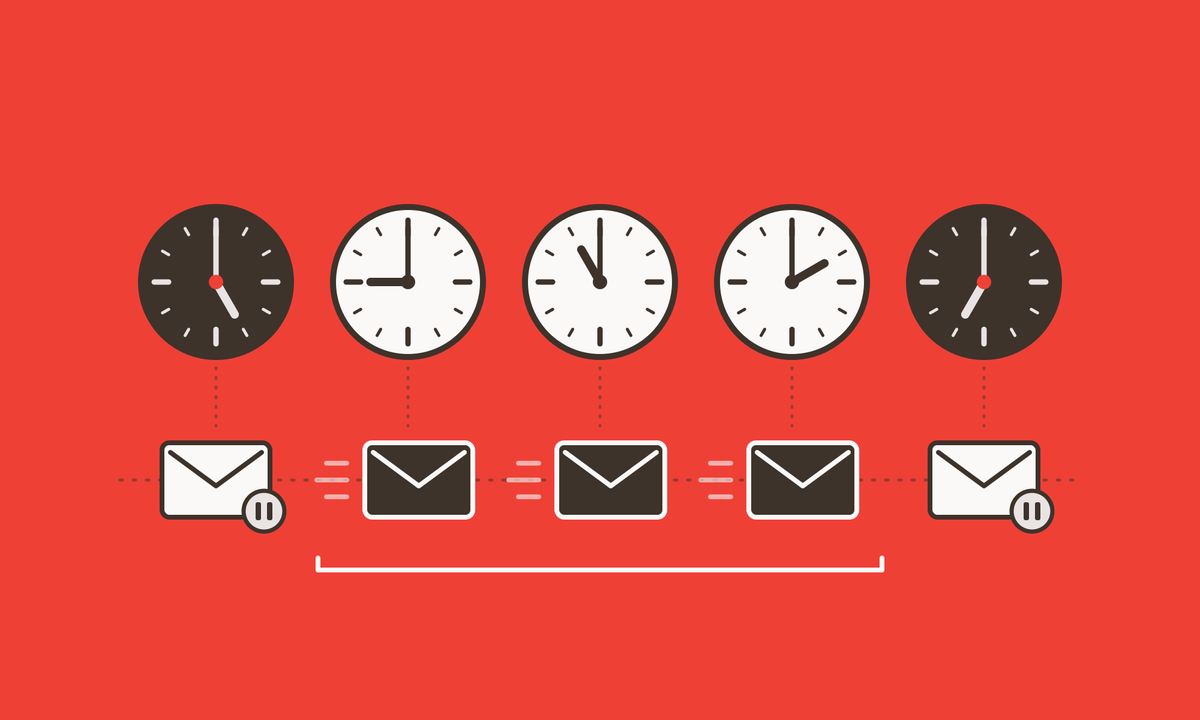
- Emails arrived at the wrong time. A 4 p.m. Moscow launch meant an 11 p.m. email in Vladivostok. An evening launch meant emails in the middle of the night.
- Weekends were ignored. An email that lands on Saturday morning is buried by Monday.
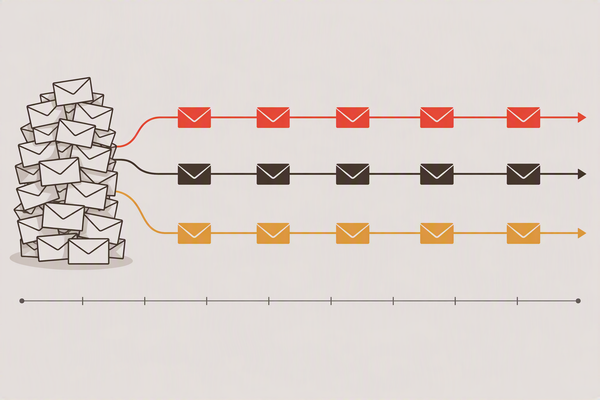
- A thousand emails went out in a single burst. That hits mail server limits, raises the risk of landing in spam, and creates a load spike on document generation.
We solved all of this with standard Bitrix24 Cloud tools, with no external servers and no paid apps.
How the solution works
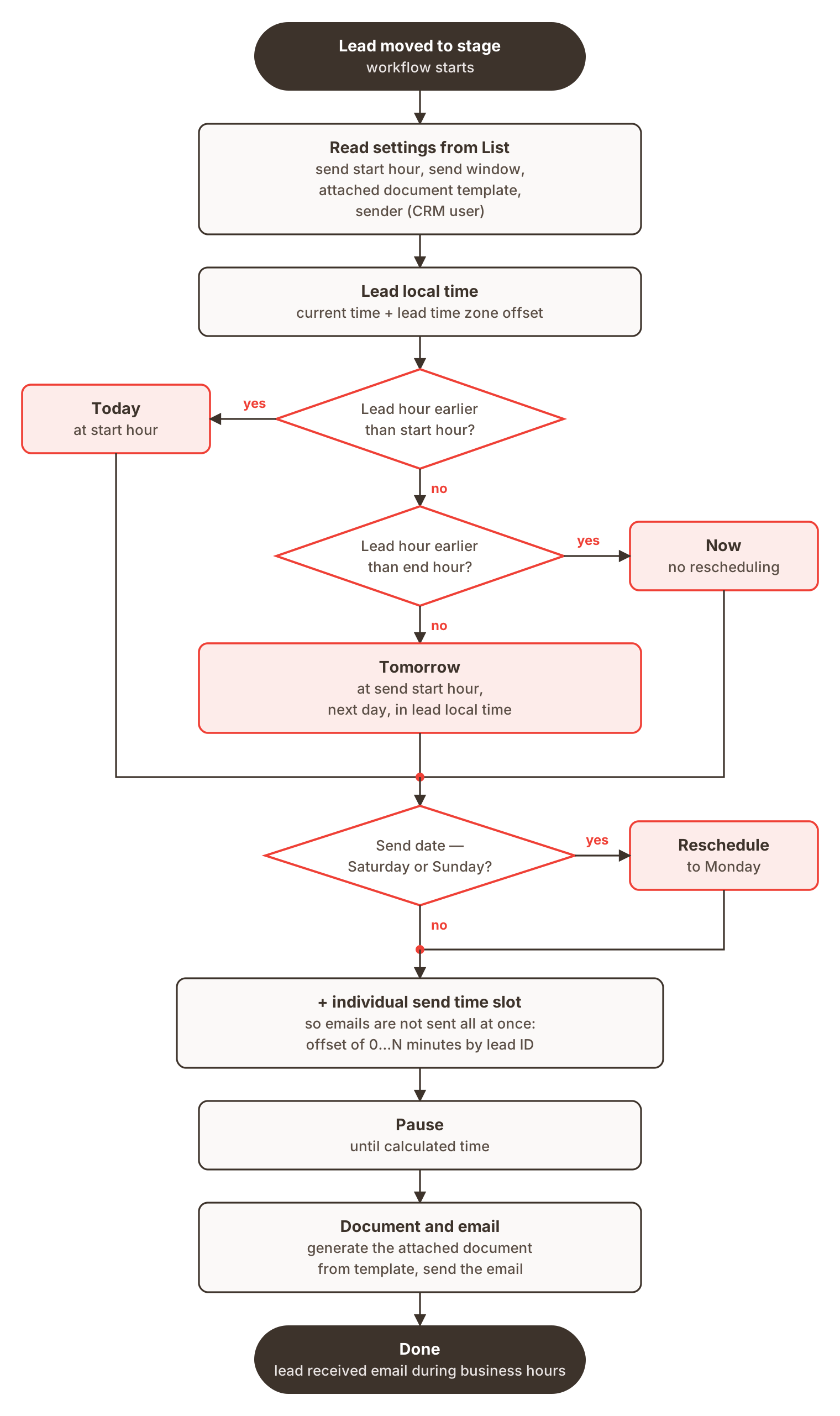
The key idea: every copy of the workflow calculates its own wake-up time. Moving a batch of leads to a stage launches a thousand independent workflows with no shared queue between them, so the time distribution has to be built into the logic of each one.
1. Settings live in a List, not in the workflow code
Mailing parameters change from campaign to campaign: the hour to stop sending today, the hour to start the next day, how many minutes to spread the mailing over, which document template to use, and who the email is sent from.
Hard-coding these into the workflow would mean calling an administrator into the designer every time. So we moved all the parameters into a Bitrix24 List, where a single element acts as a control panel. The manager opens an ordinary form, sees the current values, edits them and saves. The workflow reads this element at the very start and works only with the values it receives.
One rule for users: change the settings before moving leads to the stage. By that point, already-running workflows have calculated their send time.
2. Lead local time
Each lead has a time zone field stored as an offset from Moscow. The workflow takes the current portal time, adds the offset, and gets what time it is for the client.
Leads with an empty time zone field needed separate handling, because an empty value breaks date calculations. Simply setting a default value on the variable does not help, since it is overwritten with an empty value on assignment. So the zero is substituted directly in the formula, and such leads are treated as being on Moscow time.
3. Three time windows
Next, the workflow checks the client's local hour:
- early morning or night (before the start hour): send today, as soon as the start hour arrives for the client;
- business hours (before the end hour): send right away;
- evening: send tomorrow at the start hour in the client's local time.
The send time is always calculated on the portal's time scale: "7:00 for the client" is converted back by subtracting their offset. This is the step where people most often go wrong when setting things up themselves. They mix up the direction of the conversion and end up off by twice the time zone difference.
4. Moving sends off weekends
After choosing the window, the workflow checks which day of the week the send falls on, again in the client's local time. If it is Saturday or Sunday, the send moves to Monday at the start hour. A single check covers all three branches, so it works correctly both for a mailing launched on Friday evening and for one launched on a weekend.
5. Individual slot: no more bursts
To keep emails from going out at the same moment, each lead gets a shift of 0…N minutes added to its calculated time, where N is the mailing window from the settings. The minute number is the remainder of dividing the lead ID by the window size.
The approach may not look obvious, but it has important advantages. It needs no shared counter between workflows, so there are no race conditions at simultaneous start. And it works well even when the selected lead IDs are scattered, because division remainders are distributed almost evenly. With a thousand leads and a 200-minute window, that averages five emails per minute.
One quirk of the cloud: a workflow pause does not wake up at the exact minute, but on the nearest pass of the scheduler, which in practice runs every 5–10 minutes. So what really happens is small batches of emails a few minutes apart. The batch size is controlled by the window width.
6. Document and email
After the pause, the workflow generates the document from a template whose ID also comes from the List. It temporarily assigns the required sender as the responsible person, sends the email, and restores the previous responsible person.
The responsible person hid a pitfall that we found while auditing the original version of the workflow. The previous responsible person was saved to a global variable. There is one global variable for all thousand runs, and each new run overwrote it, so after the pause every lead would have been given back the responsible person of the last workflow to start. The fix is an ordinary workflow variable, separate for each copy.
The result
- Every client receives the email during business hours in their own time zone.
- Emails do not arrive on weekends.
- A thousand emails are spread across a set window instead of a single burst: the mail server stays within its limits and document generation runs evenly.
- The manager controls the mailing through an ordinary List form, with no access to the workflow designer and no administrator involved.
What can be developed further
- Public holidays. Right now only Saturdays and Sundays are checked. The workflow calculator can work with the portal's working calendar, so the next step is to move sends off public holidays too.
- Several campaigns at once. With a List element per campaign and leads linked to it, you can run parallel mailings with different settings and keep a history.
- Choosing a template by name. Instead of typing an ID, a dropdown of templates that syncs automatically with the document generator via REST.
If your Bitrix24 has a similar task (bulk actions that need to be spread over time or tied to clients' time zones), get in touch. We will review your current workflow and propose a solution built on standard tools.